How to build your first gaming PC on a budget
A beginner's guide to a first budget gaming PC: what each part does, how to split the money, compatibility checks, build order, first boot and drivers.
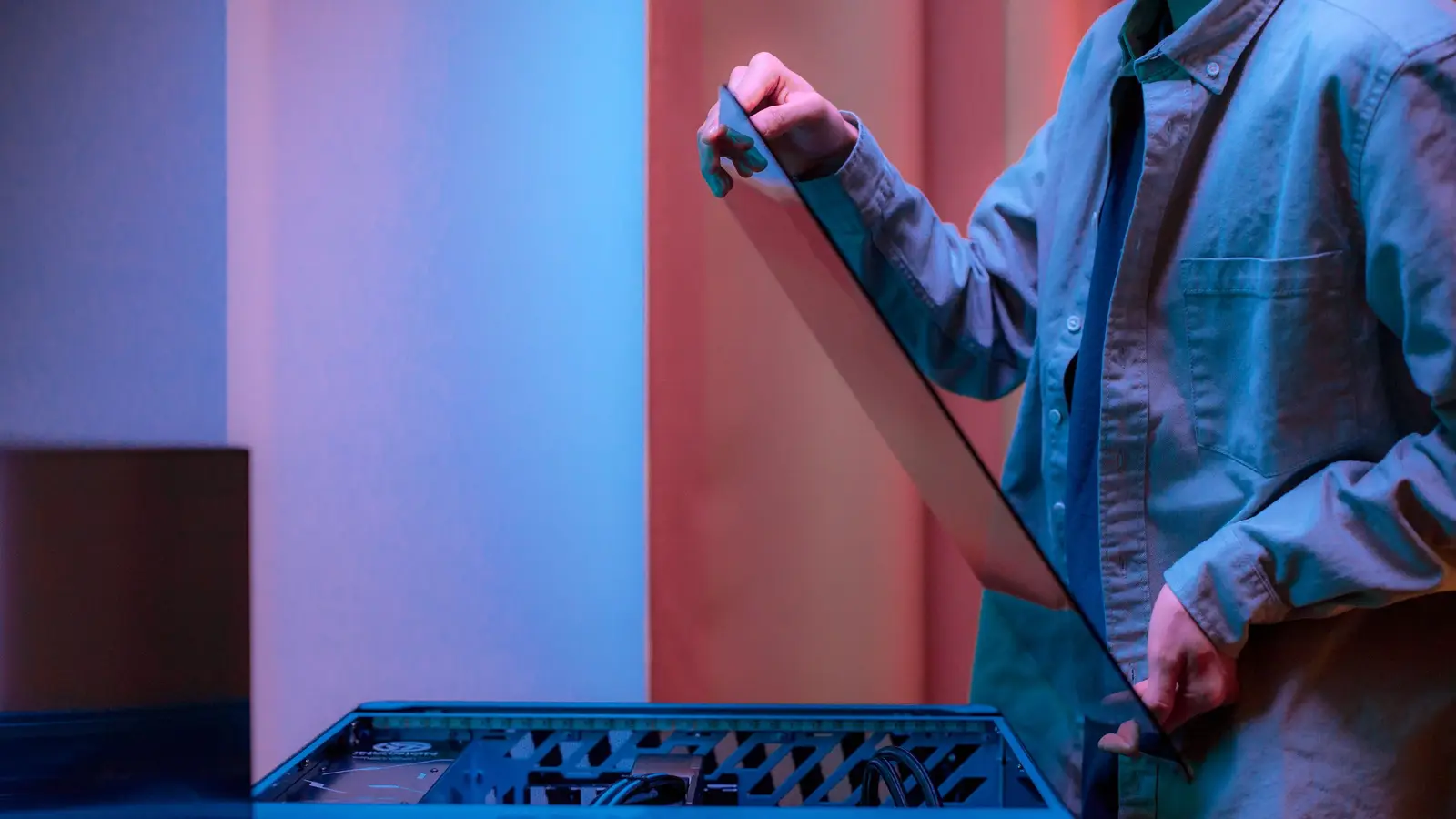
Building a gaming PC sounds scary, but it is mostly careful shopping and patient screwdriver work. This guide walks you through the parts, how to split a small budget, the checks that stop expensive mistakes, and the order to put everything together. Everything here is based on official guidance from Intel, AMD, NVIDIA and Microsoft, which we read on 23 October 2026.
If you are building for a younger player, our safe gaming guide covers the settings side once the PC is running.
The parts and what each one does
Intel’s build guide lists the core parts every gaming PC needs:
- Processor (CPU): runs the instructions for everything on the PC. Intel calls it “the brain of your PC”.
- Graphics card (GPU): plugs into the long PCIe x16 slot and, together with the CPU, largely decides your frame rate in games.
- Motherboard: the main circuit board that every other part connects to.
- Memory (RAM): short-term storage for data that programs need quickly.
- Storage: an SSD for Windows and games, with an optional hard drive for bulk files.
- Power supply (PSU): feeds power to every part.
- CPU cooler: every build needs one, air or liquid. Some processors come with a cooler in the box.
- Case: holds it all and keeps air moving.
- Monitor, keyboard and mouse: you need these to set the PC up, and you can reuse old ones.
How to split a small budget
Prices change constantly, so treat any figure as a rough guide and check current prices yourself. As a loose idea, an entry-level gaming build often lands somewhere between a few hundred and around a thousand US dollars (or the local equivalent) for the tower alone, depending on what you reuse.
Intel’s budget advice is clear on priorities:
- CPU and GPU first. Intel says these drive in-game performance and to “prioritize these whenever possible”. In a gaming build the graphics card usually takes the biggest single share.
- Do not pay for looks. RGB lighting and tempered glass do not make games faster.
- RAM: Intel says “16GB or above is ideal, but 8GB is usually fine for most games”. Below 8GB you may see problems.
- Storage: Intel suggests 500GB or more is ideal. An SSD loads games faster, though a hard drive still works.
- Plan upgrades. Intel notes you can usually upgrade RAM and storage later, and sometimes the graphics card, so a sensible base today can grow.
- Count the extras. Include a monitor, keyboard, mouse and maybe a headset in your total, or reuse what you have.
Intel also suggests looking at pre-built PCs in your price range before deciding. Sometimes a pre-built deal beats buying parts one by one.
Compatibility checks before you buy
Intel’s guide puts it simply: make a build list before you buy anything, because “all components need to be compatible with all other components”. Check these four things for every list:
- Processor socket and motherboard. The CPU must match the motherboard’s socket and be on the board maker’s supported processor list. Intel points to its Desktop Compatibility Tool for Intel parts, and the motherboard maker’s support page lists supported CPUs for any brand.
- Memory type. Check which RAM the board and processor support. Intel advises against mixing RAM kits from different manufacturers, so buy one matched kit.
- Power supply wattage. Intel recommends a PSU that is “well-made and powerful enough” for your parts now and later, with a warranty, and suggests a PSU wattage calculator to estimate your needs. Also check the graphics card maker’s recommended PSU and the power connectors the card needs.
- Case size. Motherboards come in sizes such as ATX, microATX and Mini-ITX. Intel says a mid-tower suits a typical gaming build, and if you are unsure “it’s better to err on the larger side”. Small cases are harder to build in and Intel does not recommend them for first-time builders. Check that your graphics card length and cooler height fit the case maker’s listed limits.
Intel also notes that semi-modular power supplies, where only some cables are fixed, are the best option for most people.
Safety first: static and power
Before you touch any parts:
- Unplug the power supply and work with everything switched off.
- Avoid carpet. AMD advises against working on carpet, “especially in cool, dry areas”, and Intel suggests standing on an uncarpeted floor.
- Discharge static by touching a grounded metal object such as the metal case frame. AMD and Intel both suggest an anti-static wrist strap as a cheap safeguard.
- Handle the processor by its edges and do not touch its pins or contacts.
- Gather tools: Intel lists a Phillips #2 screwdriver for most screws and a smaller Phillips #0 for M.2 drives, plus a tray for screws and good lighting.
Step-by-step build order
Intel’s guide uses this order, which makes cable routing easier:
- Install the CPU in the motherboard socket while the board sits on its box. Line up the alignment marker as the motherboard manual shows, and never force it.
- Install M.2 SSDs (optional at this stage) while the board is easy to reach.
- Fit the CPU cooler. AMD notes that many new coolers have thermal paste already applied, so you do not add more. If yours does not, apply a small amount as the cooler’s instructions describe, because too much can spill over the edges. Connect the cooler fan to the CPU fan header.
- Install the RAM. Check the manual for which slots to use with two sticks.
- Test outside the case (optional). Intel suggests connecting the CPU power, the 24-pin power, the graphics card and a monitor to check the PC starts before you mount everything.
- Mount the power supply in the case.
- Install the motherboard on its standoffs and screw it in.
- Install the graphics card in the PCIe x16 slot your manual recommends and connect its power cables if it needs them.
- Install other storage and connect all power cables, including the 8-pin CPU connector near the top of the board and the 24-pin connector at the side.
- Connect front panel cables (power button, USB, audio) using the motherboard manual.
Tidy cables with ties as you go. Better airflow helps the PC run cooler.
First boot and installing Windows
Before you start, prepare a Windows installer. Microsoft’s support page says you need a blank USB drive with at least 8GB of space, a reliable internet connection, and a product key if your licence needs one. Download the Media Creation Tool from Microsoft’s Download Windows 11 page and follow its prompts. Only use Microsoft’s official download page.
Windows 11 has minimum requirements, including a compatible 64-bit processor, 4GB of RAM, 64GB of storage, UEFI with Secure Boot capability and TPM 2.0, according to Microsoft. Modern gaming parts normally meet these, but check before you buy older second-hand parts.
On first power-up:
- Enter the BIOS (press the key your motherboard manual names as the PC starts).
- Check every part is detected: processor, all of your RAM, and your drives.
- Set the boot order with the USB drive first. Intel notes that if the USB stick will not boot, check the board is in the right mode, since most UEFI systems try UEFI first.
- Install Windows and follow the setup screens.
If the PC will not turn on, Intel suggests reseating the RAM first, then checking your manual for diagnostic lights or codes.
Install drivers from official sites only
After Windows is running, install drivers straight from the chip makers:
- AMD: the AMD driver page offers an auto-detect and install tool for Radeon graphics and Ryzen chipsets on Windows 10 and 11, plus manual product search.
- NVIDIA: the NVIDIA driver page has manual driver search and the NVIDIA App, which NVIDIA describes as keeping drivers up to date automatically.
- Intel: Intel Driver & Support Assistant is a free Windows app that scans for Intel driver and software updates.
Also check your motherboard maker’s support page for chipset, network and audio drivers. Avoid “driver updater” programs from unknown sites.
Once everything is installed, read our tips to improve FPS (many apply to desktops too) and browse our pick of the best free-to-play games of 2026 for something to play straight away.
Questions people ask
How much RAM does a budget gaming PC need?
Intel's guides say 16GB is ideal for modern gaming, while 8GB is usually fine for most games. If money is tight, 16GB in a matched kit is the safer long-term choice.
Do I need an anti-static wrist strap?
It is optional but cheap. AMD and Intel both advise avoiding carpet, touching a grounded metal object such as the case frame to discharge static, and using a wrist strap where you can.
Where should I download drivers?
From the official sites: AMD's driver page or its auto-detect tool, NVIDIA's driver page or the NVIDIA App, and Intel's Driver & Support Assistant. Avoid third-party driver download sites.
Is building cheaper than buying a pre-built PC?
Not always. Intel suggests comparing pre-built systems in your price range before you decide. Building does make later upgrades easier.
Sources
Games, prices and rules change. These are the official pages this article relies on, with the date each was checked.
- How to Build a Gaming PC: Gaming PC Parts and Setup Guide (Intel) (intel.com) Accessed 23 October 2026
- Finding the Right Budget Gaming PC (Intel) (intel.com) Accessed 23 October 2026
- How to Install or Remove an AMD CPU Cooler (AMD, article CPU-7) (amd.com) Accessed 23 October 2026
- Drivers and Support for Processors and Graphics (AMD) (amd.com) Accessed 23 October 2026
- NVIDIA Drivers (nvidia.com) Accessed 23 October 2026
- Intel Driver & Support Assistant Fundamentals (intel.com) Accessed 23 October 2026
- Create installation media for Windows (Microsoft Support) (support.microsoft.com) Accessed 23 October 2026
- Windows 11 Specifications and System Requirements (Microsoft) (microsoft.com) Accessed 23 October 2026