Safe gaming for young players: privacy, scams and parental controls
How to spot free-currency scams and phishing, lock down game accounts with two-step verification, and set parental controls on every major platform.
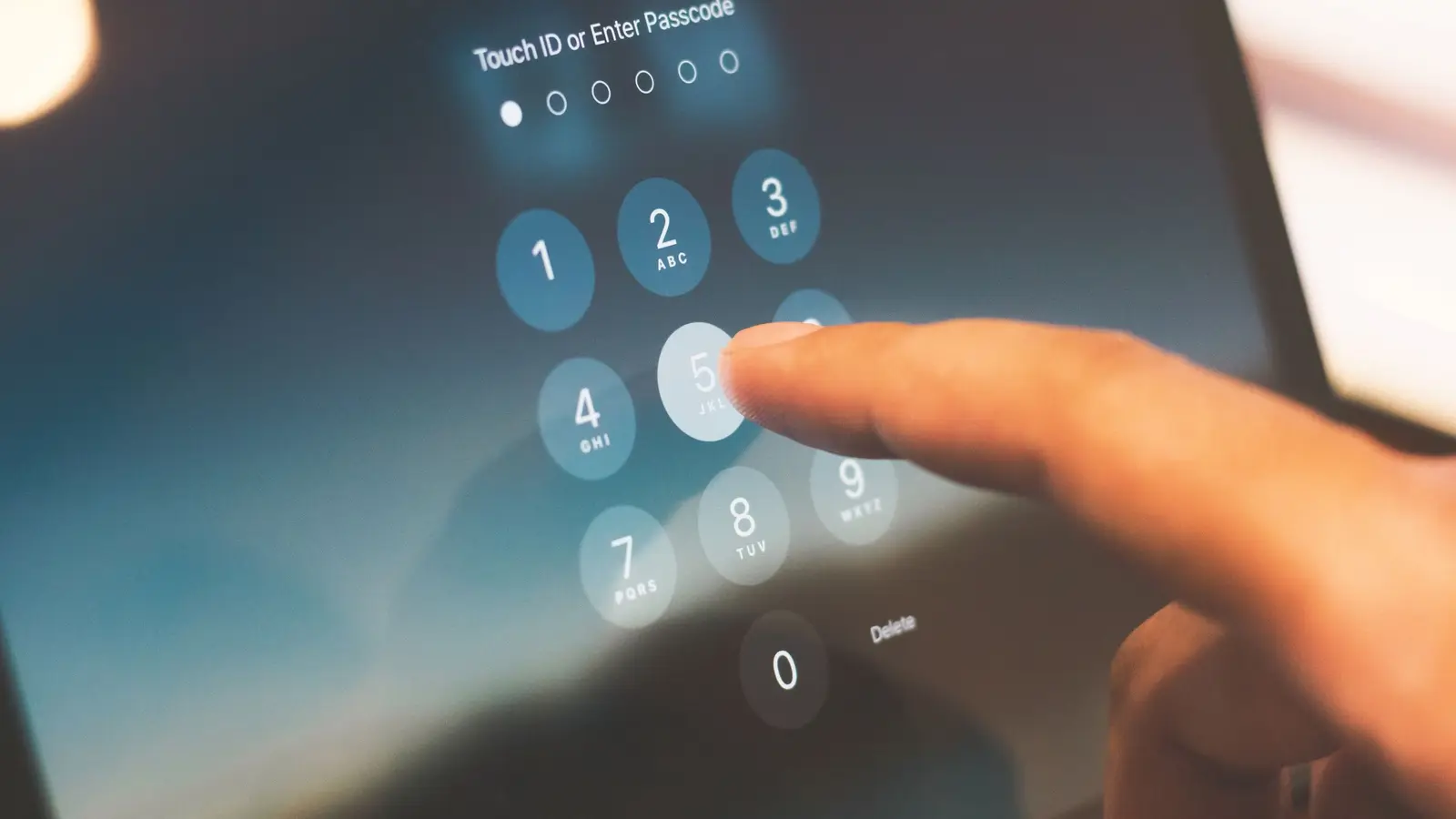
Games are social, and that is a big part of the fun. It also means young players meet strangers, see offers that sound too good to be true, and have accounts worth stealing. This guide covers the three things that matter most: spotting scams, securing accounts, and setting up parental controls. Every step comes from official help pages we read on 23 October 2026.
The golden rules
Before any settings, agree on these with your child:
- Free currency offers are always scams. No exceptions.
- The password only goes into the official login page. Not a website, not a Discord message, not a “giveaway”.
- Keep personal details private. No real name, school, address or phone number in chat or on a profile.
- Tell an adult about anything odd, from a pushy stranger to a message saying “your account is banned”.
Scams to know about
“Free Robux” and “free V-Bucks”
Roblox is blunt about this: “Any offer of free Robux, subscriptions, or valuable items is a scam.” It explains that these offers try to trick players into giving away a password or personal information, or into clicking a bad link, with the goal of taking the account and everything in it. Roblox also warns that following such advice and making false purchase claims breaks its rules and could get an account deleted.
Epic gives the same warning for its games. It says not to trust suspicious offers of free titles or V-Bucks, “especially if they ask you to provide your login details on external sites”, and adds: “Never log into external sites with your Epic credentials.” Real offers appear on the Epic Games Store or official Epic websites and social channels.
Phishing and fake staff
Scammers often pretend to work for the game. Steam says hijackers “often” impersonate Steam or Valve employees, that you should never give your account details to anyone claiming to be from Valve or Steam, and that Steam Support is handled only through help.steampowered.com.
Roblox lists “admins with no badge” as a red flag: if someone says they are Roblox staff but does not have the Roblox Admin badge on their profile, report them. Roblox also says it will never ask for your password outside the Roblox login page, and that links shared by users that take you off Roblox should be treated as spam or a possible attempt to get your information.
Account trading and off-platform deals
Buying, selling or sharing accounts is against Epic’s Terms of Service “and will result in an account ban”. On Roblox, Premium members can trade and sell through official features, but if you make an unofficial deal outside the Trade or Sell features, Roblox says it cannot help you recover items if the other person backs out.
Lock down every account
Turn on two-step verification
Two-step verification (also called 2FA or 2SV) means a password alone is not enough to log in.
- Roblox: Go to Settings > Security and choose the type of verification you want to use. Roblox also supports passkeys (fingerprint or face ID) under Account Settings > Account info > Login Methods > Add Passkey.
- Steam: Steam Guard is on by default once your email is verified and Steam has been restarted twice. Steam says getting codes from the free Steam Mobile app “provides the best level of Steam account security”.
- Epic: Epic advises protecting the email address on your account with a strong password and 2FA, because password reset links and security codes are sent there.
Protect the email account too
Steam explains that if someone takes over your email account, they can reset your Steam password. Its advice: “Never use the same password for both your email and Steam account.” The same logic applies to every game account, so give each one its own password and keep the email account the most secure of all.
Watch out for malware
Steam warns that malware can let a hijacker use a device you have already signed in on, and recommends antivirus software with real-time protection. Epic gives the same advice, and says it blocks cheat tools and other tools that damage the privacy or integrity of its platform. The simple rule: only download games and add-ons from official stores.
Parental controls, platform by platform
Xbox
Xbox family settings are managed in the Xbox Family Settings app or at account.microsoft.com/family. From there you can set daily screen time, limit time on specific games and apps, view activity reports, and allow or block multiplayer, clubs, broadcasting, adding friends and chat. With Ask a Parent, you receive an email when your child wants to buy something and needs your help to pay. You can also add an allowance so they can only spend what you put in.
PlayStation
Use the free PlayStation Family app on your phone, or sign in to Account Management on the web and select Family Management. On PS5 the path is Settings > Family and Parental Controls > Family Management. You can set playtime limits for each day, age levels for games, and restrictions on communication and user-generated content. Restricting communication turns off text messages and voice chat with other players, though pre-written in-game messages still work. PlayStation’s monthly spending limit for a child is set to 0 by default, so purchases are blocked until you change it.
Nintendo Switch and Switch 2
Nintendo’s free Nintendo Switch Parental Controls smart device app links to both Nintendo Switch 2 and Nintendo Switch. It lets you limit how long and how late the system can be used each day, choose which games can be played by age rating, limit messaging and image sharing with other users, and manage spending on Nintendo eShop. Nintendo says that for GameChat, players under 16 can only chat with friends a parent has approved. The parent needs their own Nintendo Account and must be 18 or older.
Steam
Steam Families replaced the older Family View and Family Sharing features. You can invite up to 5 family members, each set as an adult or a child. Adults can choose which games each child can access, restrict the Steam Store, Community or Friends Chat, set hourly or daily playtime limits, view playtime reports and approve requests for more time. Children can also send their shopping cart to an adult, who approves and pays from their phone or by email.
Roblox
Roblox parental controls cover content, chat, spending, screen time, and friends and privacy. You can either link your own Roblox account to your child’s, or use Parent mode on your child’s device. With a linked account, go to Settings > Parental controls and select your child. The Content maturity slider has four levels: Minimal, Mild, Moderate and Restricted. You can also block or allow individual games, set a monthly spending limit with notifications, and set a daily screen time limit. Note that from age 13, Roblox moves screen time limits and blocking to the child, and spending limits no longer apply. Our Roblox starter guide covers these settings in more depth.
Fortnite and other Epic games
Epic’s parental controls apply across Fortnite, Rocket League and Fall Guys. Sign in to your child’s Epic account through the Epic Account Portal to change them, and you can sign up for daily email reports when changes are made. Key settings:
- Voice and text chat: choose Everybody, Friends, team members and connections, Friends only, or Nobody. For a child under 10 the maximum is Friends only; for a child under 13 it is Friends, team members and connections.
- Mature language filter: always on for players under 13 in Fortnite text chat.
- PIN for friend requests and payments: your PIN can be required for Epic friend requests and for real-money purchases through Epic.
- Paid random items: decide whether your child can spend V-Bucks on rewards that are random.
- Fortnite content ratings: block experiences above a rating you choose unless your PIN is entered.
A ten-minute checklist
- Turn on two-step verification for every game account and the email behind it.
- Give each account its own password.
- Set chat to friends only for younger children.
- Set a spending limit, or keep it at zero.
- Set playtime limits that match your family routine.
- Agree that any “free currency” offer gets reported, not clicked.
Choosing what to play next? See our list of the best free-to-play games for families, every one checked against its official age rating. Questions about this guide? Get in touch.
Questions people ask
Is there any real way to get free Robux or V-Bucks?
No. Roblox says any offer of free Robux, subscriptions or valuable items is a scam, and Epic warns against suspicious offers of free V-Bucks, especially ones that ask you to log in on another site.
Is it OK to buy or share a game account?
Epic says buying, selling and sharing accounts breaks its Terms of Service and will result in a ban. Roblox says it cannot help you recover items if you make an unofficial deal outside its Trade or Sell features.
Which two-step verification method is best?
Use an app on a phone where you can. Steam says codes from the Steam Mobile app give the best level of Steam account security, because you approve logins with a physical device you own.
Do console parental controls cover games like Roblox?
Not always. Roblox and Epic have their own parental controls for chat and spending, so set those as well as your console's settings.
Sources
Games, prices and rules change. These are the official pages this article relies on, with the date each was checked.
- Roblox Help: Free Robux or subscription generators (en.help.roblox.com) Accessed 23 October 2026
- Roblox: Avoiding frauds and scams (about.roblox.com) Accessed 23 October 2026
- Roblox Help: Parental controls overview (en.help.roblox.com) Accessed 23 October 2026
- Epic Games: Account security (safety.epicgames.com) Accessed 23 October 2026
- Epic Games Parental Controls (safety.epicgames.com) Accessed 23 October 2026
- Steam Support: Steam Guard (help.steampowered.com) Accessed 23 October 2026
- Steam News: Steam Families is here (store.steampowered.com) Accessed 23 October 2026
- Xbox family settings (xbox.com) Accessed 23 October 2026
- How to set parental controls on PlayStation consoles (playstation.com) Accessed 23 October 2026
- Nintendo Switch Parental Controls (nintendo.com) Accessed 23 October 2026